
The pane
The graph is the product surface, not hidden plumbing. The pane renders the whole graph, updates live over SSE while your assistant works, and is where every review and repair gesture lives. It runs in the browser at http://127.0.0.1:8787, inside JetBrains IDEs (tool window or editor tab), and in VS Code's secondary sidebar.
Three layouts
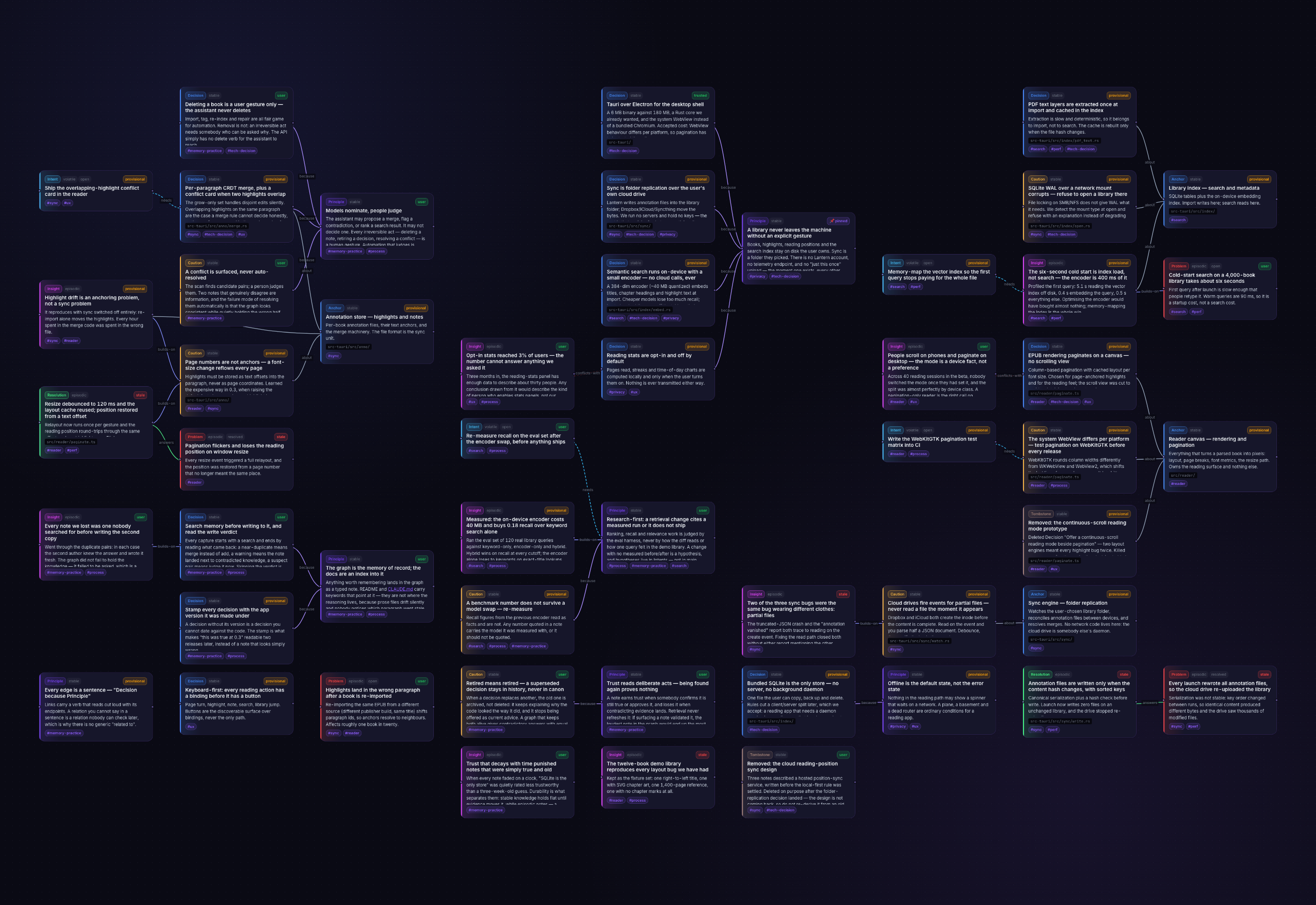
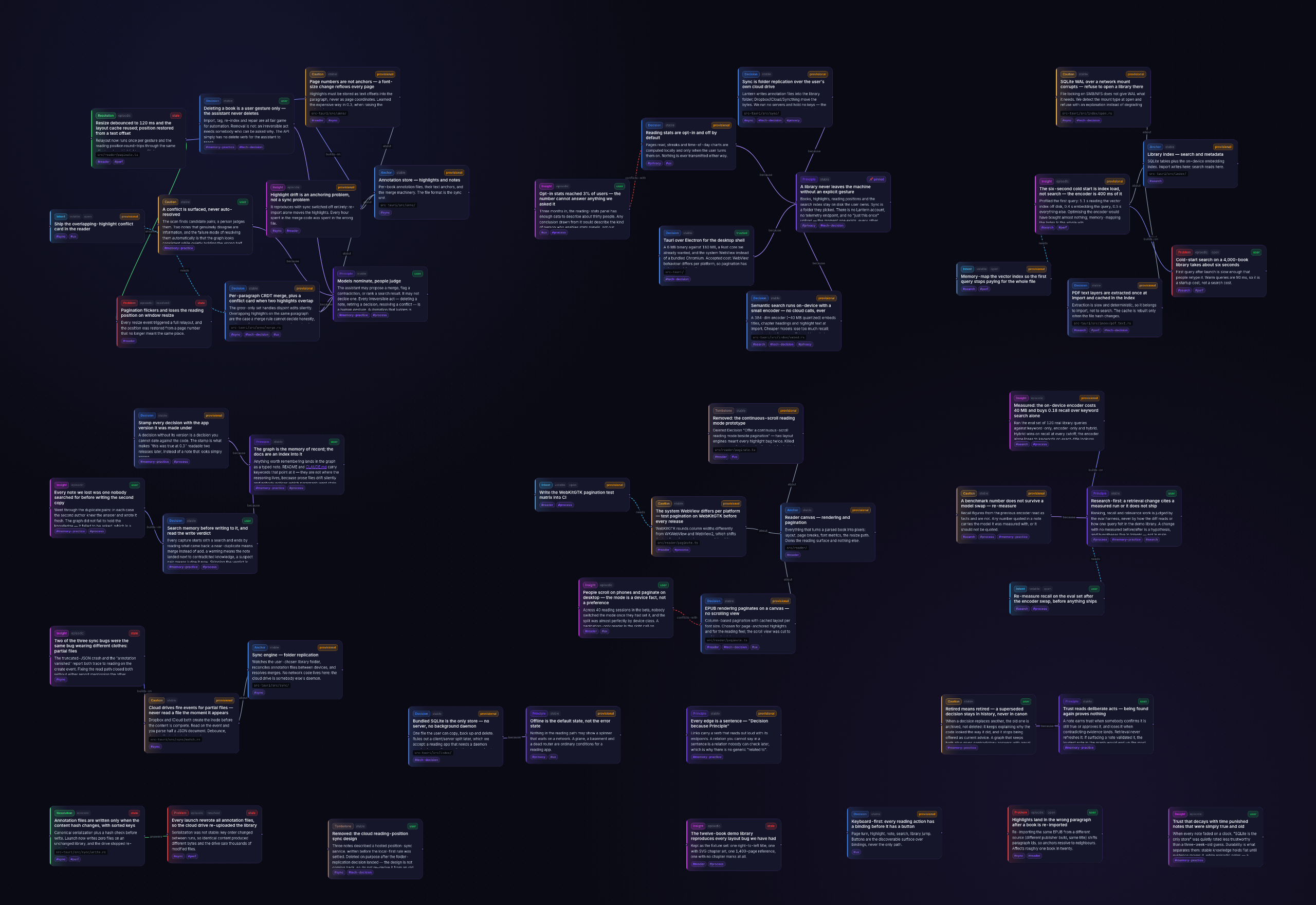
One shape can't serve every question, so the canvas ships three:
| Skyline — layered left→right, packed rows | Archipelago — community islands, physics inside |
|---|---|
 |  |
| Orbit — hubs with satellites in rings | |
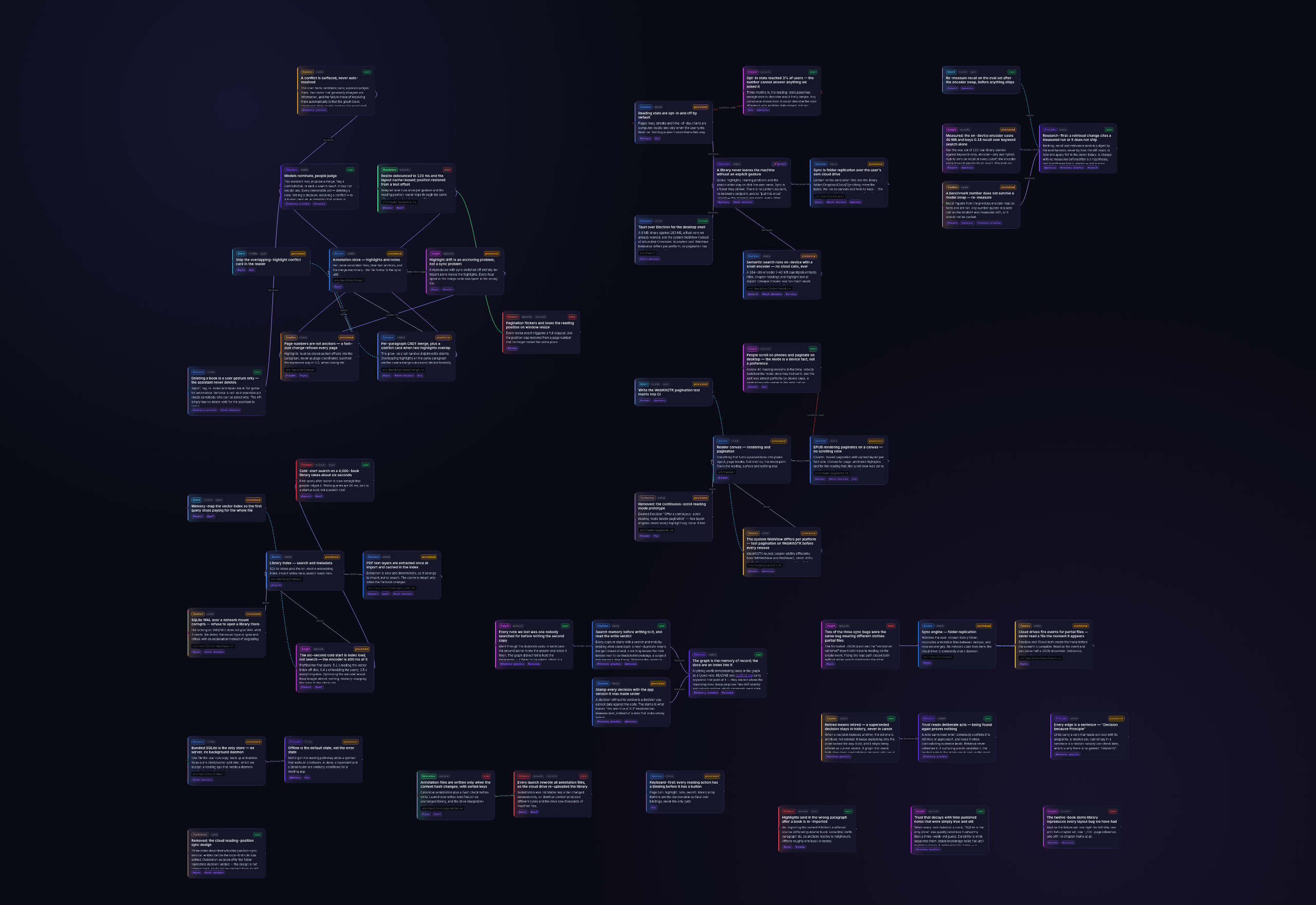 |
Skyline reads like a history, Archipelago separates concerns into islands, Orbit puts the load-bearing nodes in the middle of their neighborhoods. Inside VS Code or a JetBrains IDE the pane matches your IDE's own theme — colors, corners and fonts, following a theme switch live; elsewhere pick Engram Purple, IDE Light or IDE Dark. A click-to-center minimap handles big graphs, and a health strip keeps the counts that matter — suspected conflicts, stale nodes, provisional writes — in the corner of your eye.
The canvas is drawn on the GPU (WebGL2), so a graph of thousands of notes pans and zooms smoothly (5,000 holds 60 fps through zooms, drags and minimap jumps). Select a card and its neighborhood stands out: the edges one, two and three hops away widen and draw on top, and the rest of the graph dims. Zoomed far out, card text turns into simple lines; double-click or double-tap zooms in (Shift zooms out). The card under your pointer and the selected card are real HTML on top, so links and the hover expansion work as usual. On a machine without a usable GPU, or if the GPU gives out mid-session, the pane switches to its DOM canvas (Vue Flow) on its own. Same cards, just slower on big graphs.
The timeline feed
The screen switch in the topbar (Graph / Feed / Tasks / History; one compact menu when the pane is narrow) slides to the pane's second screen, the feed: the same memory as a vertical feed of cards, neighbors peeking above and below so you always see where you are in the stream.
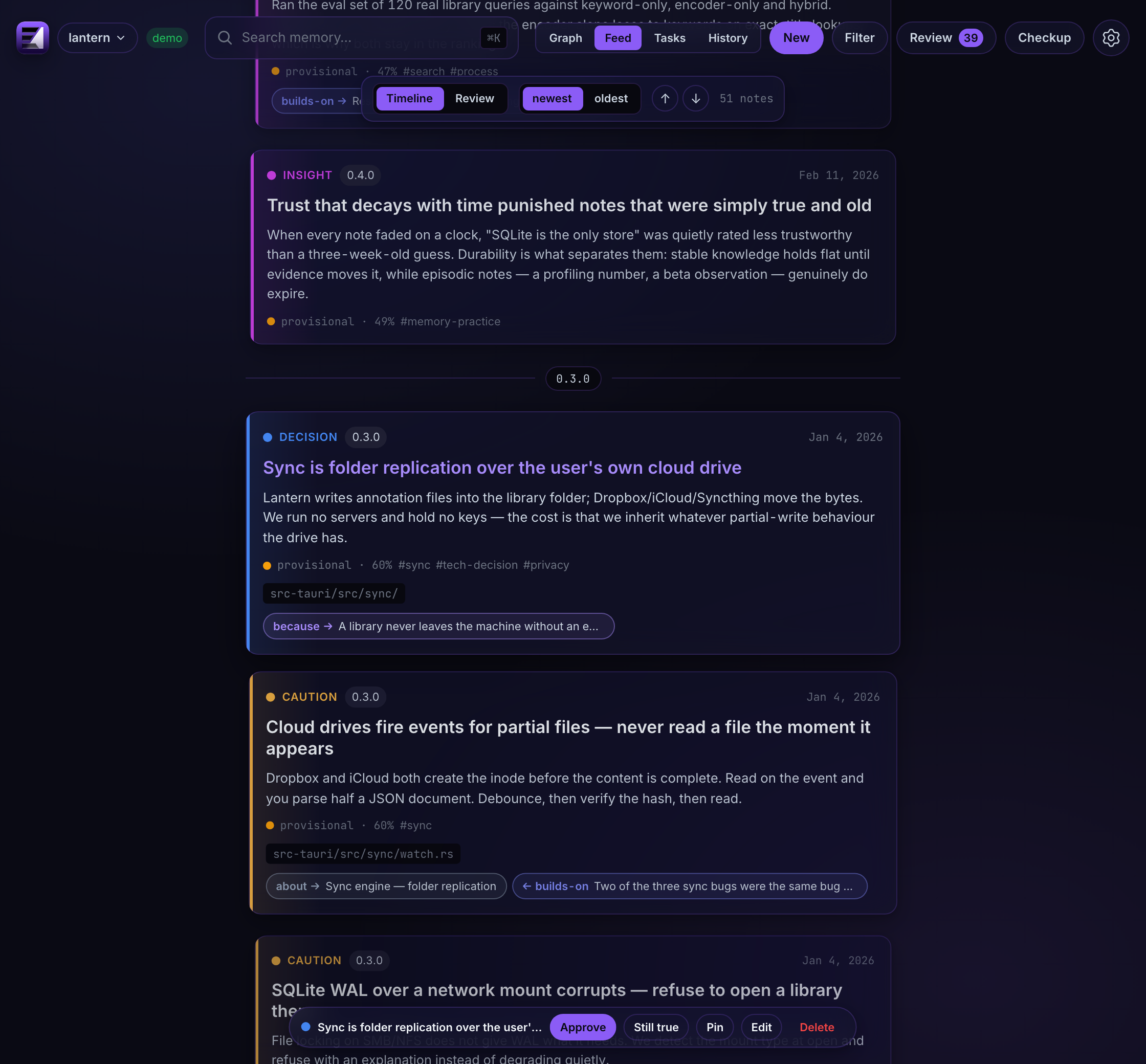
Two lenses over the same feed:
- Timeline — everything in chronological order, with version markers wherever the project's working version moved on. History reads as a story: the problem, the decision that answered it, the caution it left behind.
- Review — only what needs a human eye (provisional, stale, drifted), ordered weakest trust first, with the judgment actions inline.
Every card shows its full markdown clipped to a fixed preview; the card you stop on opens to its whole body, however long — scroll inside it, then move on (j/k and the arrow keys navigate too, and ↑ / ↓ in the toolbar jump to the ends of the feed). Cards carry what the node is about: version, status and drift badges, its computed trust (or a stale badge, the same one the Review drawer uses), its tags, the code files it cites — struck through where the file no longer exists — and its date, which spells out creation and last retrieval on hover. The bottom bar carries the side drawer's actions for whichever card is centered — Approve / Still true / Pin / Edit / Delete — so a review pass never leaves the feed. The feed's Delete is the quick way to clear out notes you don't need while you review. It asks in a dialog: Just delete removes the note and its edges with nothing left behind, and Leave a Tombstone records what was removed, with an optional note on why and (by default) the removed text, so the assistant doesn't learn it again (see Edit everything by hand). The dialog remembers your last choice; ⌘/Ctrl+Enter confirms, Esc cancels. The cards around the current one fade with their distance from it, and one selection ring glides from card to card as you move.
The feed also traverses: click any edge chip on a card and the feed jumps to that node — even one the current lens filters out — while ← back walks the trail home (session-scoped, forty hops deep). And the two screens share one notion of "current": select a node on the canvas and the feed opens centered on it; leave the feed and the canvas selects and centers the card you were reading.
Starting from empty
An empty graph shows one card on either screen: what will fill it, how to fill it now (/engram:digest, or "digest this project" — see Seeding an existing project), and an Ontology picker. An empty graph is the one moment a preset can be applied with nothing to retype, so the choice lives where you meet it — pick one, press Save, and every later write speaks that vocabulary.
Sessions, as they were recorded
The last screen of the topbar toggle is the History screen — the optional session-history layer, off until you turn it on. Its harvester reads your assistants' own transcripts into a sibling store (sealed at rest by default), and the screen reads them back: every recorded session in the left rail with its harness, date and turn count, the conversation itself beside it, and Delete session for anything that shouldn't have been kept.
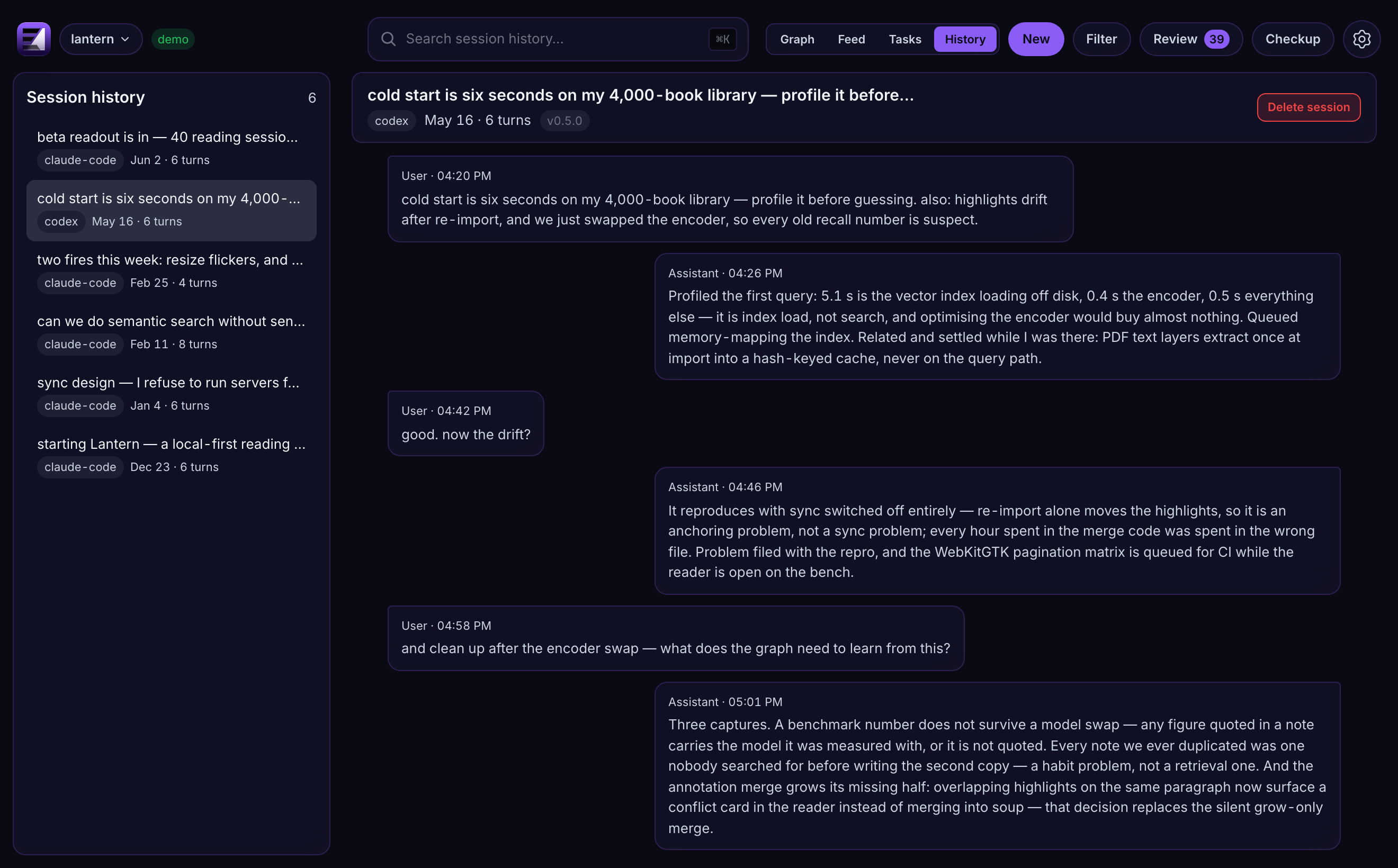
Transcripts never enter the graph. They stay a labeled fall-through under search, and the link runs both ways: a note carries the session it was born in, and a session lists the notes born in it.
Tasks: what the assistant is doing
The Tasks screen of the topbar toggle (its label carries the active count) is the assistant's working list, kept beside the graph and never in it: tasks are never searched, never scanned for conflicts and never counted as knowledge. The brief lists the active titles right after the current cycle, so a new session knows what the last one was in the middle of.
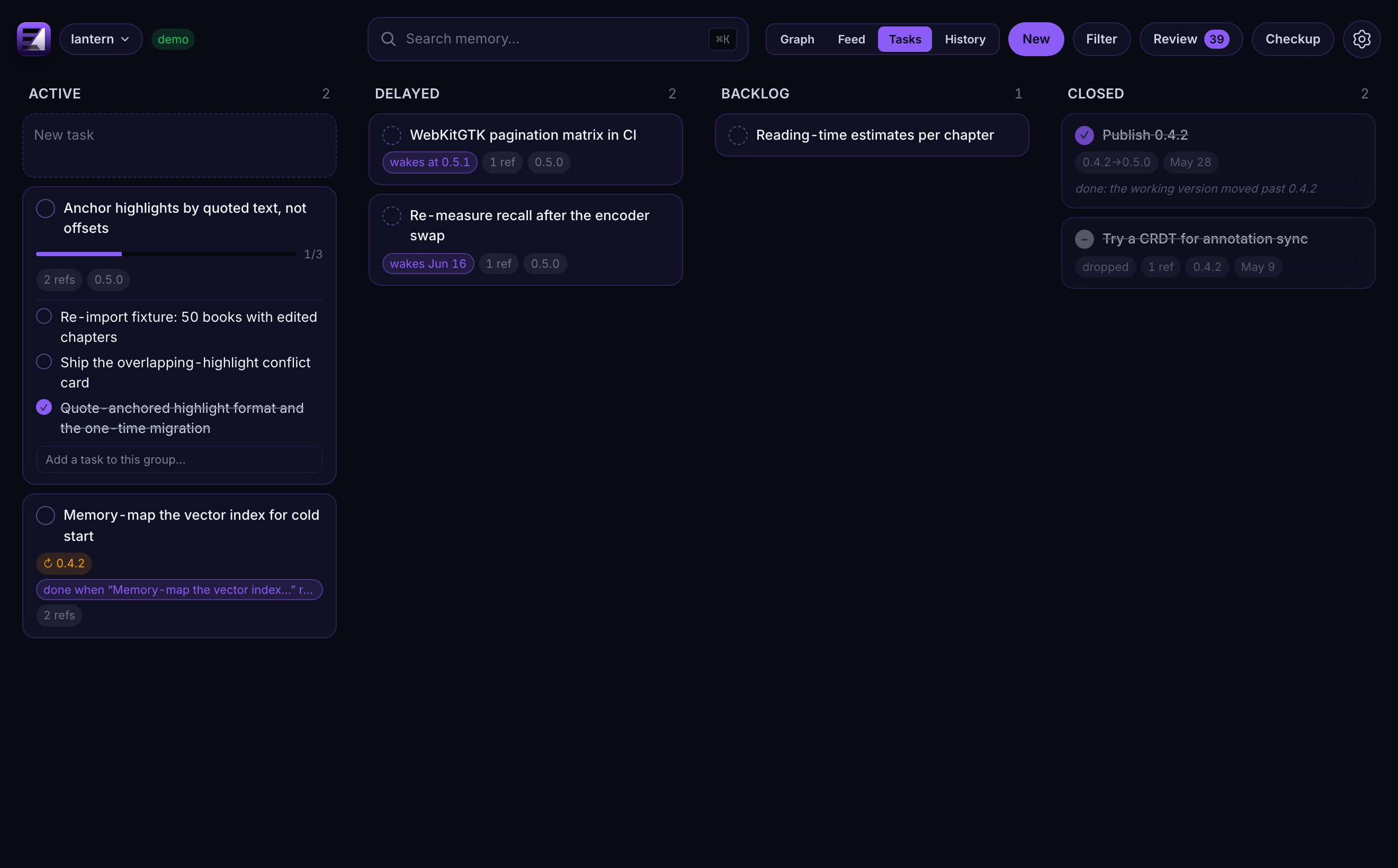
- Columns are statuses: active, delayed, backlog, and a closed column that keeps done and dropped work (closed tasks are archived, never deleted). Drag a card to reorder it (the brief follows that order) or to another column to change its status; Escape cancels a drag. The circle closes or reopens a task. Dragging works the same in the browser and inside both IDEs, and on a touchscreen. In a narrow pane the columns fold into one, with a switch above the board to pick which one you see.
- Groups hold the pieces of one feature inside the card, with a progress bar. Groups are one level deep, close themselves when their last task closes, and reopen when one of their tasks does. A closed group stays in the closed column; drag its tasks out one by one.
- Rules close or wake a task on their own: at a version (
0.10.0, or>0.9.12for "once past it"), on a date (2026-10-20,in 3 days), or when a note it waits on is resolved (node:<id>). A release-shaped title such as publish 0.9.12 gets its close rule automatically. Rules are checked whenever tasks are read and whenever the working version moves, and every automatic change says why on the card. - Refs point a task at the notes it is about; the note's drawer lists the open tasks that point at it. Notes never store a pointer back.
New in the top bar opens a new task on this screen: a title, an optional plan, the column it starts in, its group and when it should be marked done. If an open task already covers the title, the panel offers that one instead of creating a twin. Filter narrows the board by the version a task was opened in, by who created it (you or an assistant), and by flags such as carried over from an older version or idle. Search in the top bar stays memory-only.
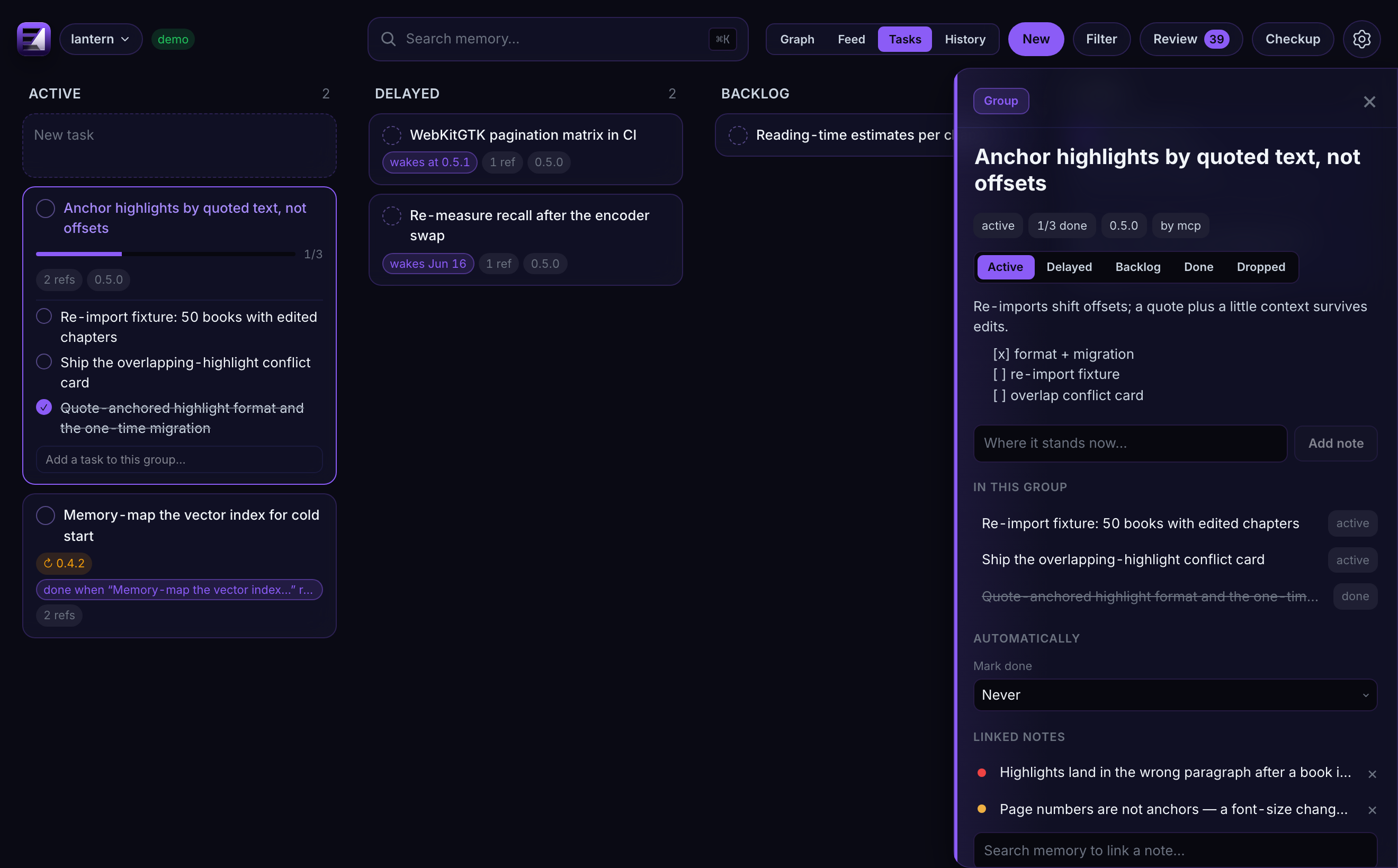
Click a card for its drawer: the title, status, group, a markdown plan with a one-line Note that appends where things stand under today's date, the rules, refs found by searching memory, and provenance. Hard delete lives there and nowhere else — assistants can close and drop tasks, but only you can delete one. A change you make on the board stands: the assistant is taught not to undo your status, order or rules.
Settings → Graph settings → Tasks sets the brief's section (on/off, how many active titles, how many recently done, after how many sessions an untouched task is marked idle). It also holds the Keep a task list switch: tasks are on by default; turned off, the Tasks screen and the brief section disappear and the assistant's task tools answer that tasks are off, so it works without them. Stored tasks are kept for when you turn it back on.
Tags and filters
Nodes carry free-form tags, settable by you in the pane or by the assistant on request ("tag everything about the auth rewrite").
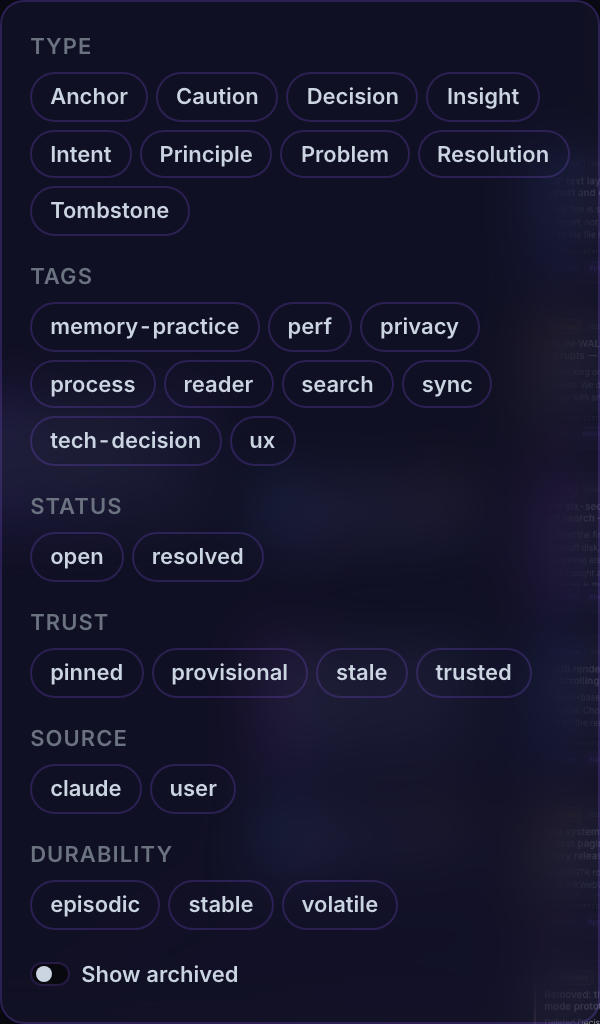
The filter menu turns the graph into slices: one click on a tag chip and the canvas shows only that concern. Combine tags with type, status (open/resolved/obsolete), trust (pinned/provisional/trusted/ stale), and durability filters for views like "open problems in the retrieval layer" or "every unreviewed decision from phase 2".
Retired knowledge is filtered out by default: a node that has been superseded or decayed away is history, not canon — it stays one Show archived click away, and always reachable through its successor's History section.
Tags are also how you and the assistant stay on the same page: the session brief lists the project's tag vocabulary, the assistant reuses it when capturing, and you filter by it when reviewing.
Edit everything by hand
The graph is yours, not a read-only visualization of what the AI did. Selecting a node opens everything the graph knows about it — badges, its standing (the verdict the assistant reads on the same note, linking to whatever replaces or contests it), tags, custom field values, body, links, and the session it was born in — with every one of them editable in place.
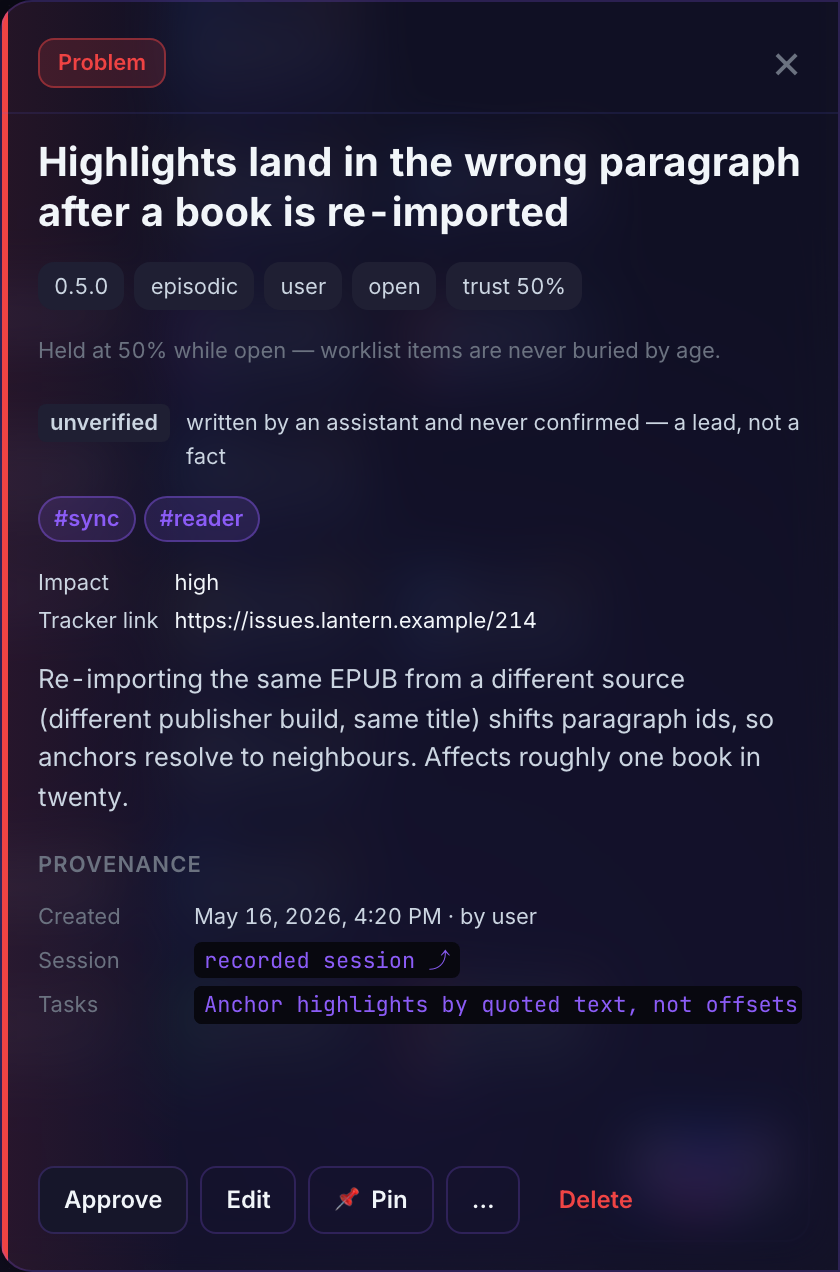
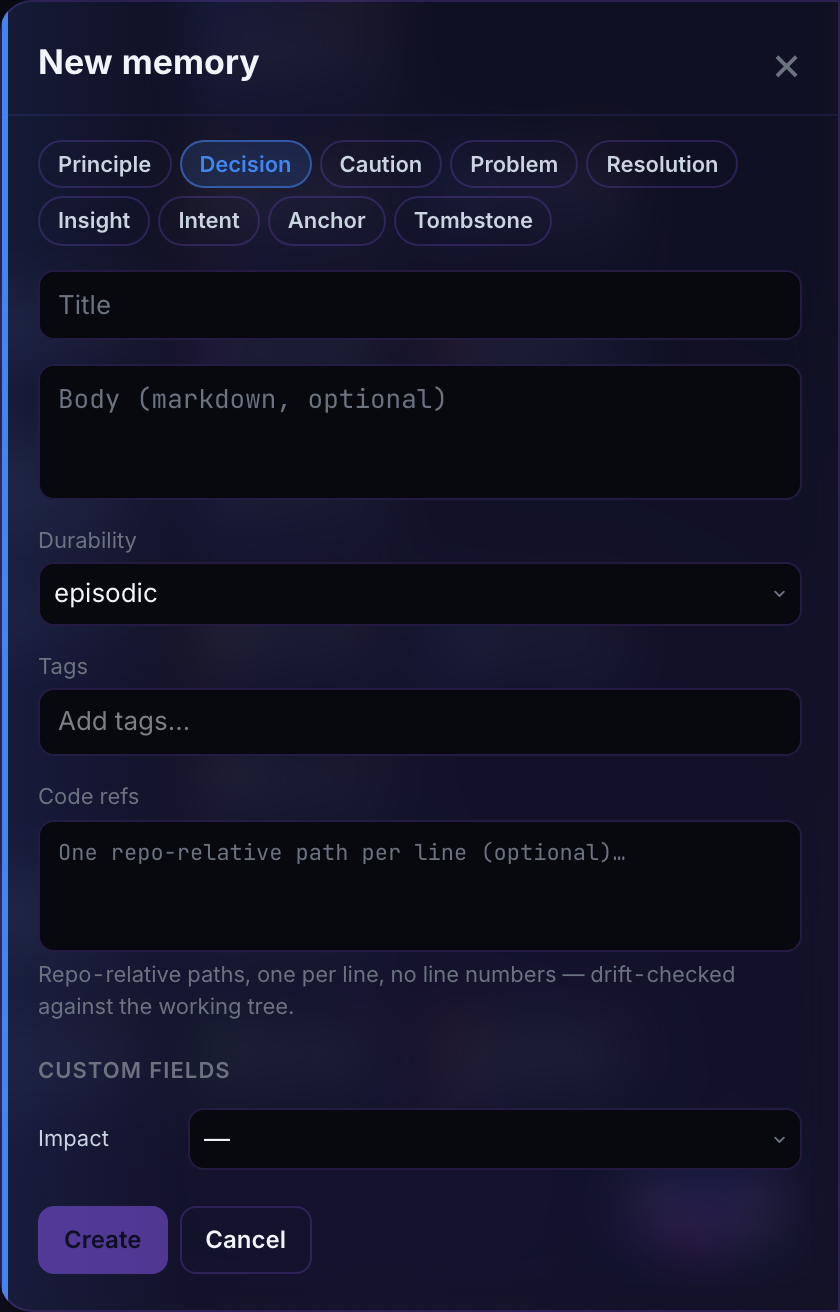
Create nodes from the + New drawer — type, title, markdown body, durability, tags, and any custom fields the graph declares (required ones marked).
Link by dragging from one node's handle to another; a dialog asks which of the seven verbs the connection means. If no verb fits, there is no edge to create.
Edit, retype, re-anchor any node in place — custom field values included; retype or delete edges from the node's connection list. Code refs are editable too, as plain text (one repo-relative path per line, no file picker) — the field the Checkup panel's drifted-notes list opens straight into, so a moved or deleted file's stale reference is a two-click fix.
Hard-delete is user-only by design: the assistant can supersede knowledge — and since 0.9.2 bury it behind a Tombstone of its own — but only you can destroy it. The delete confirm offers to leave a Tombstone (on by default, with an optional reason) — a record of what was removed and why, so no future session innocently re-learns it. By default the Tombstone keeps the removed text (body, tags, code refs), which is what lets a later rewrite of the same content land on it and draw the assistant's
tombstonedwarning; untick that to purge the text and keep only what was removed and why. The victim'saboutedges move onto the Tombstone, so the removal stays attached to the code subject it happened under.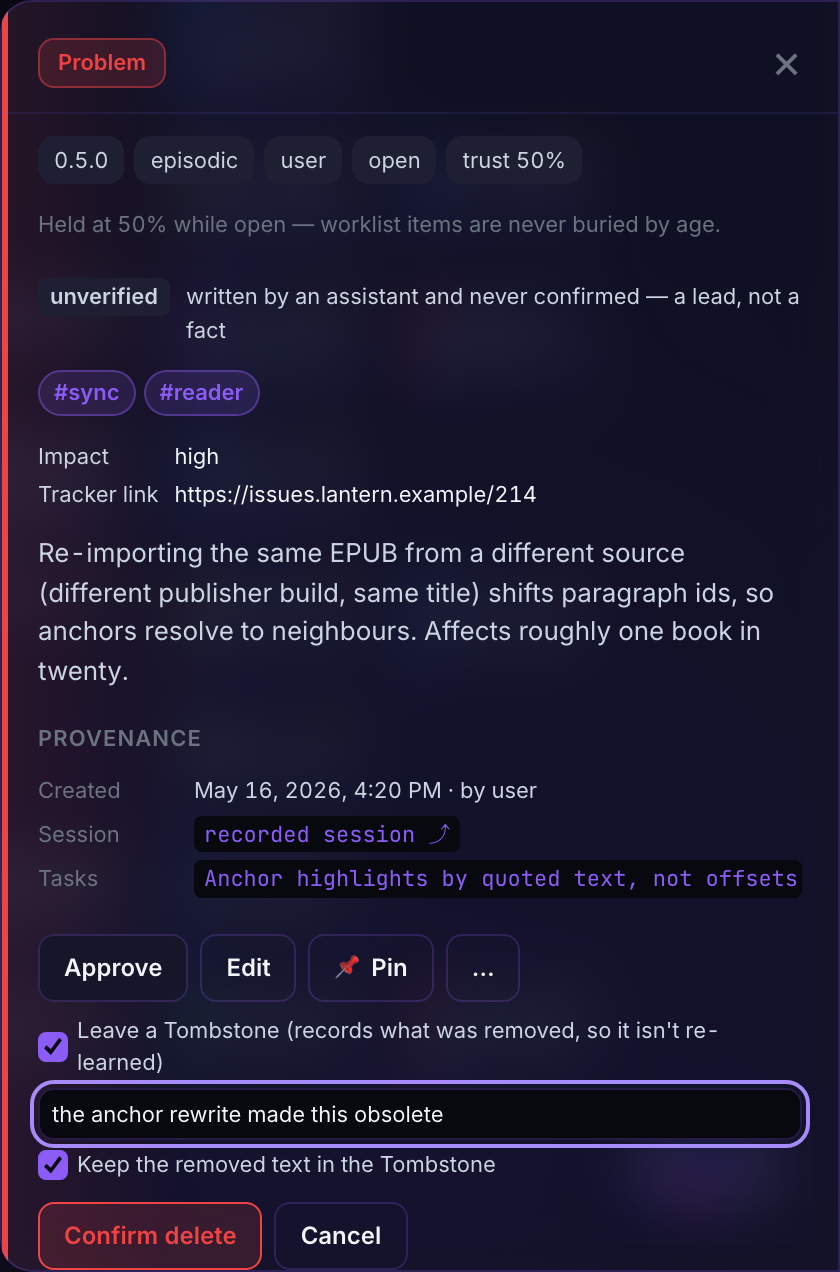
The Review drawer
Capture is silent; Review is where it becomes accountable.
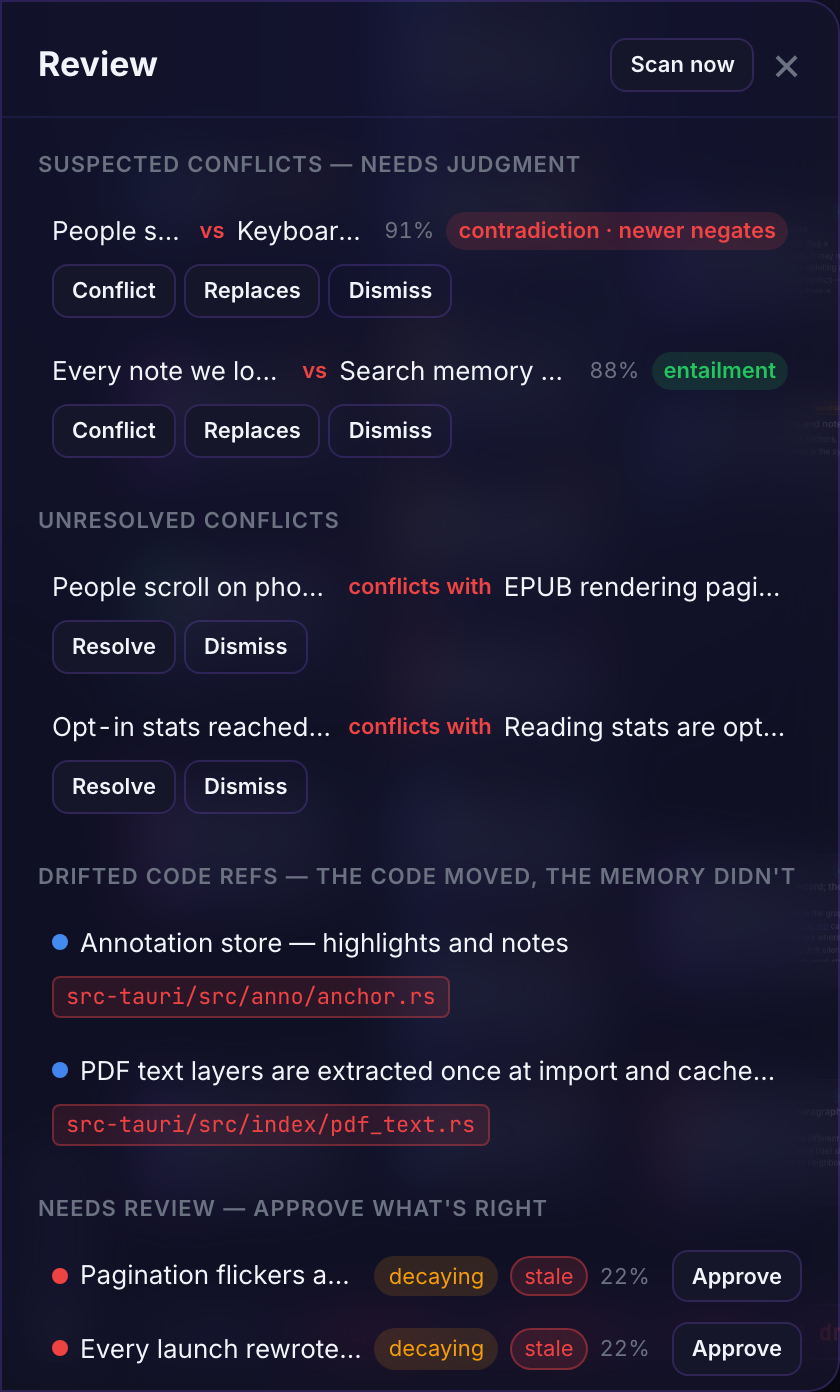
Everything recently added, everything awaiting review with its computed trust, one-click Approve for what you vouch for — and above the queue, the conflict worklist: suspected look-alike pairs awaiting your Conflict / Replaces / Dismiss verdict (see Conflicts & Checkup). Since 0.11.0 a pair and a note carry a chip naming their crowded subject, and the approval queue groups by subject with Approve all per group.
Every change on the record
An append-only audit journal records every node and edge mutation — created, updated, approved, archived — with before/after values, which session did it, over which transport, and what the daemon knew at the time.
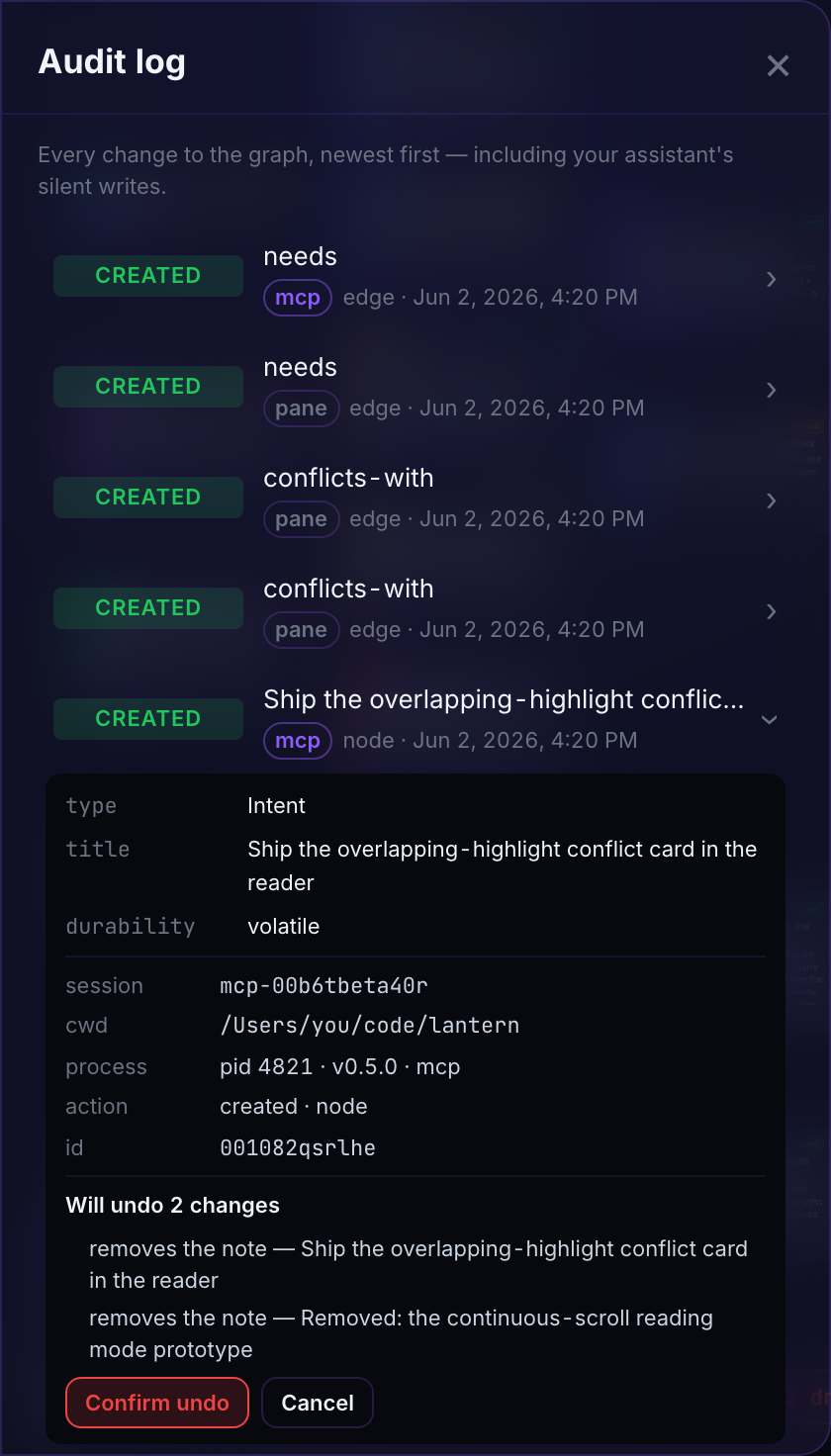
When you come back from vacation to a graph that looks different, "what changed and who wrote this" has an exact answer.
And if the answer is "a session that went wrong", you can take it back. Open a row and use one of its buttons:
- Undo reverts that one change. A created note is removed (with no tombstone), an edit is restored to what it was, and a deleted note comes back with its links. When the row is part of one operation, such as a merge or a delete together with its links, the button reads Undo operation and reverts all of it.
- Undo session reverts everything that session wrote, newest first.
Both show a preview first, listing what will be undone and what will be skipped, and nothing changes until you confirm. A change is skipped when something newer touched the same note since; the preview names that newer row, so you can undo it first if you mean to. Every undo is recorded as its own row, so an undo can be undone too. Undo is yours alone, like hard delete: the assistant has no tool for it.
History at the knowledge level
Any node in a replaces chain shows a History section in its detail drawer: every generation on a timeline, oldest first, the current one marked, each retired generation carrying the note that explains why it was replaced — one click to jump to any of them. The assistant gets the same chain through the timeline tool: "how did the auth decision evolve" is one call, with dates.
Settings → System
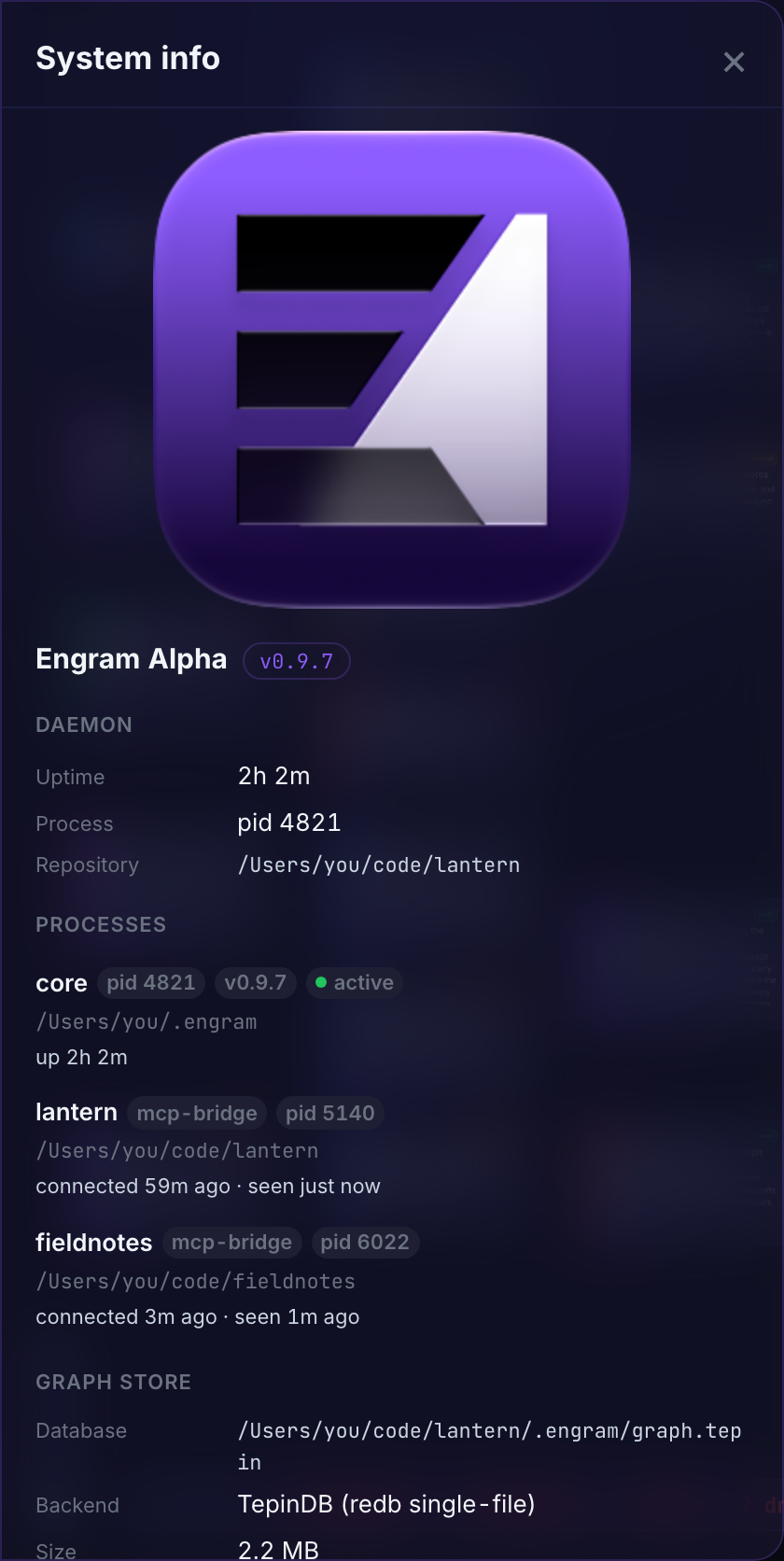
The System panel is the daemon's self-report: binary version and uptime, store backend and integrity, the loaded local models with their on-disk paths and the Choose models selector, the machine project registry, and per-assistant wiring status. Since 0.8.8 it also lists the processes: the machine core (pid, version, uptime) and every connected MCP client with its project folder and connection age, from the same live census engram-alpha status reads — plus whether the models are loaded or idle-unloaded. Since 0.9.0 it carries the two At-rest encryption switches (encrypt graph — off by default; encrypt history — on by default): flipping one migrates the whole store with a progress readout, and each store's recorded state is shown beside its switch. See SECURITY.md for what sealing does and doesn't protect.
The panel describes the core, and the core is one machine-level process whose own store is the home graph. So the Graph store section shows the home graph's size, integrity and vectors when home is selected. With a project picked in the top-bar switcher, it names that project's folder and database file instead (since 0.10.3).